
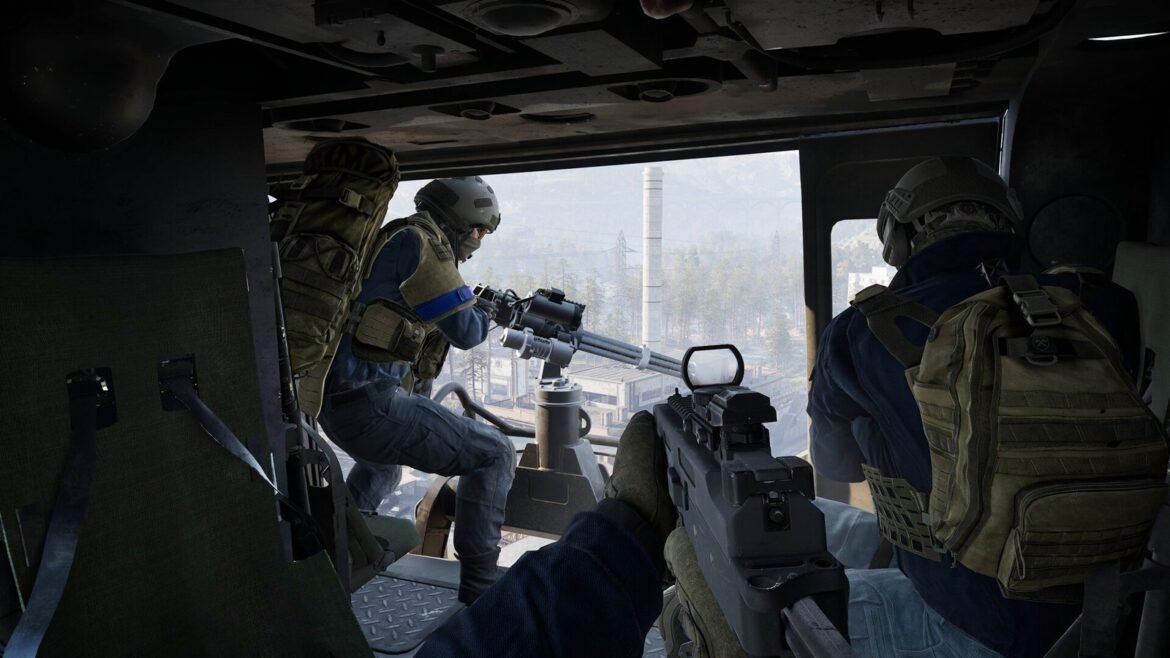
In Wardogs, an organised squad carries more weight than five good players each doing their own thing. The map is huge, three factions fight over the zone, and the teams that talk are the ones that score. Here’s how to get into the same match as your friends, build your squad and get organised, using the G4melab community’s approach.
Joining a friend in their match
There’s no classic pre-match party lobby. The simplest method, reported by several community guides:
- One player joins the server first and picks their faction.
- The others open their Steam friends list, right-click on their name and choose “Join Game”.
- They land on the same server and, if there’s room, in the same faction and squad.
Even simpler: all join the same community server by its ID (Community tab → Join by ID, or search by name). Each player needs their own copy: Steam Family Sharing is disabled for Wardogs. To clip your best squad moments, G4 Studio (F9) is free.
Ending up in the same faction
Switching teams to join your mates is still possible, but Season 2 added safeguards against players who switch sides to join the winning team. As soon as a team is more than 10 points ahead:
- you can’t switch teams again for 15 minutes after joining one;
- if you switch teams or join a match in progress, your map stays hidden until you reach the Control Zone;
- you can’t use the spawn vehicle before reaching the zone.
Bulkhead says these rules should always let you join your friends’ team. The simplest option is still to pick the same faction on arrival: Lonestar (blue), Valkyra (red) or Manticore (green).
Creating and managing your squad
Squad size isn’t limited, according to the official FAQ. Being in a squad gives you extra UI, communication tools and vehicle locking. In a match, open the menu to show the squad list: you can create one, lock it, request to join one or invite players without a squad. Since Season 2, the squad leader can display a squad intent visible to the whole team (chosen from a predefined list), and invitations stack instead of overwriting each other.
The exact squad menu labels come from community guides: they may change from one update to the next.
Proximity voice or squad voice
Wardogs has two voice channels: proximity voice, which everyone around you hears, enemies included, and squad voice, reserved for your group. Each has its own push-to-talk key, and a selection wheel lets you choose the active channel. Remember that before calling out your position out loud behind an enemy wall. The level 4 helmet also muffles proximity chat in Season 2.
Many teams also prefer a Discord voice channel alongside the game. On the G4melab Discord, you can come alone: we’ll find you Wardogs teammates.
Getting organised like a real team
Splitting roles
Before the match, take a minute to decide who does what: one player opens, one covers, one heals, one resupplies or drives. Roles change during the match, but starting with a plan stops everyone doing the same thing in the same place. In Wardogs, your role is defined by what you do, and each action levels up the corresponding track.
Short callouts
On voice, the rule is simple: position, number, action. “Two left of the building, pushing up.” Everything else waits until the fight is over. Pick one player to make the call when things heat up: even if they’re sometimes wrong, a quick decision beats five conflicting opinions.
Holding a sector
When several teams play on the same community server, each one can hold a sector. That’s when Wardogs gets really interesting: fronts open everywhere, and each squad has its role. One team can, for example, go capture towers while another holds the zone.
Reviewing your plays
The best teams debrief. With G4 Studio, G4melab’s free app, you clip your best Wardogs moments with F9 (or manually): just watch them back together to understand what worked.
Playing with friends FAQ
How do I join a friend in Wardogs?
Your friend joins a server and picks their faction, then you right-click on their name in your Steam friends list and choose “Join Game”. You can also join the same community server by its ID.
How many players in a squad?
The official FAQ says squad size isn’t limited.
Can enemies hear my voice chat?
Yes, if you’re using proximity voice: everyone around you hears it. Squad voice is reserved for your group.
Does everyone need to buy the game?
Yes. Steam Family Sharing is disabled for Wardogs: each player needs their own copy.
New to the game? Start with our beginner’s guide, then join us on the Discord.