
Streaming asks your PC to do two things at once: run the game and encode the video. On a modest machine, the temptation is to push everything to the max, and the result is a choppy stream. With the right settings, though, a mid-range PC can deliver a perfectly clean stream.
720p60, the best compromise
For a fast-paced game, smoothness matters more than resolution. A stream in 720p at 60 frames per second looks sharper in motion than a stuttering 1080p, and it needs far fewer resources and much less bandwidth. It’s the default setting in the free version of G4 Studio.
Bitrate based on your connection
The video bitrate must fit within your upload speed, with headroom. For 720p60, aim for around 4,500 kb/s; for 1080p60, around 6,000 kb/s. Run an upload speed test: if your connection doesn’t leave a good margin above that, lower the bitrate rather than risk drops.
Use your graphics card’s encoder
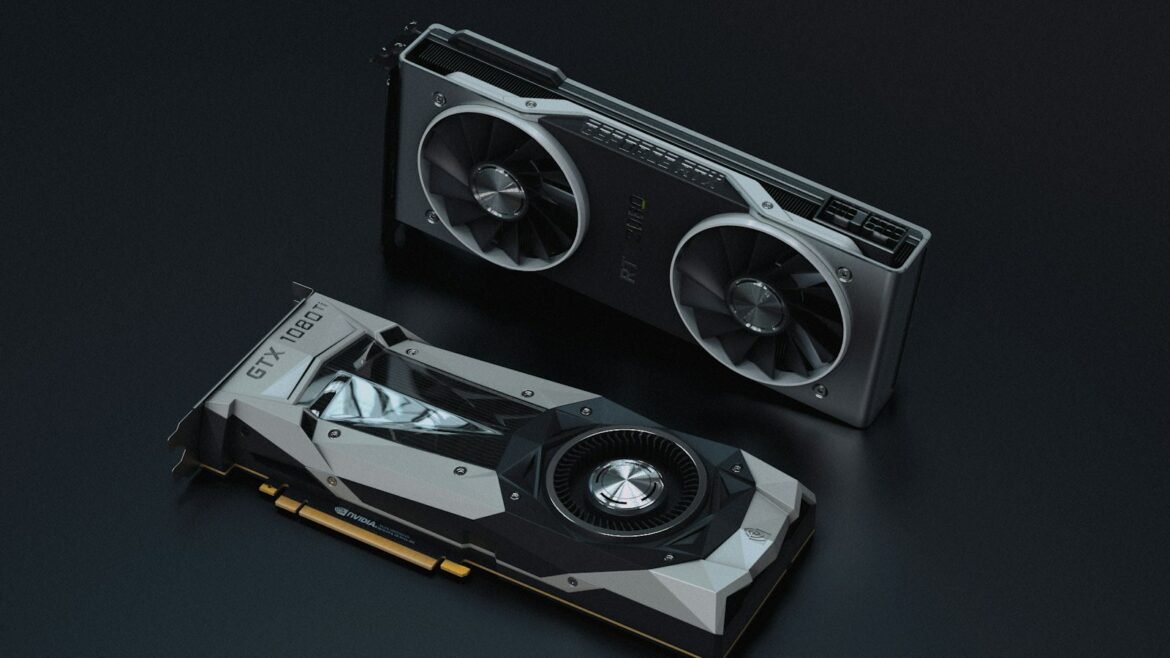
Recent graphics cards include a dedicated video encoder. Using it frees up the processor, which can focus on the game. It’s often the setting that makes the biggest difference on a modest PC.
Lighten the game
- Cap the game’s FPS: a game locked at 60 or 90 frames per second leaves headroom for encoding.
- Lower shadows and effects: these are often the heaviest settings for little visual gain.
- Close what you don’t need: a browser with twenty tabs, useless launchers, background software.
Check before going live
Run a short test stream or a recording, then watch the result: dropped frames, out-of-sync sound, blurry picture in motion. Change one setting at a time so you know what really helped.
When to move to 1080p?
When your PC handles 720p60 without flinching and your connection has headroom. G4 Studio Premium unlocks 1080p60, for both streams and clips. For the rest of your gear, see our beginner streaming setup guide.