
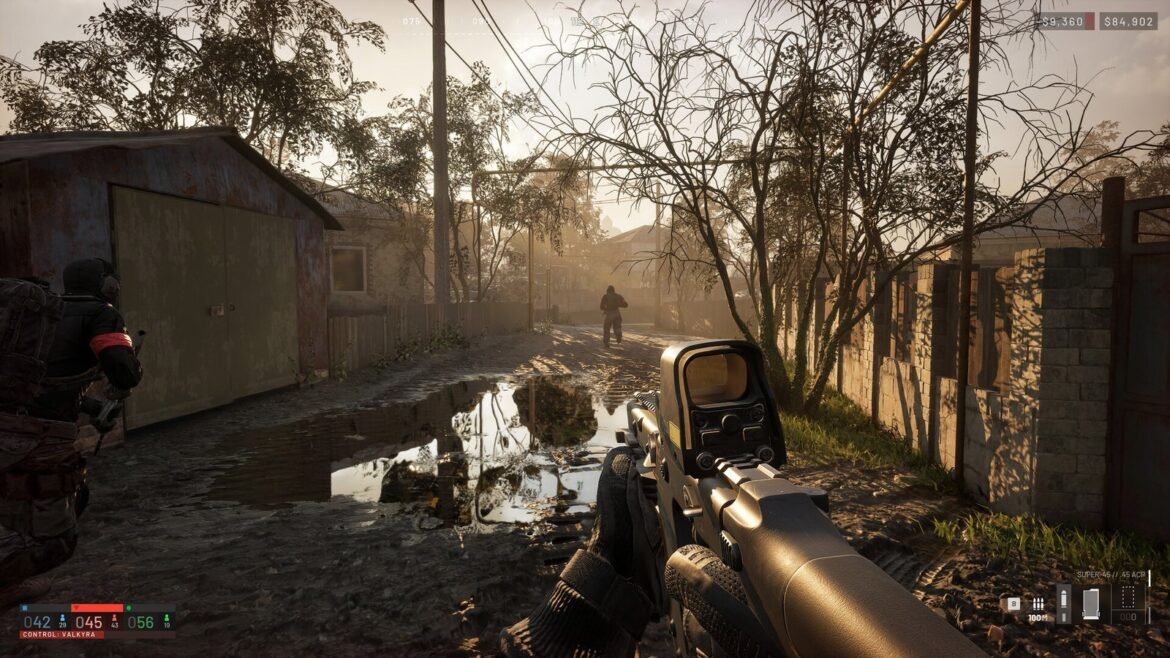
Want more frames per second in Wardogs without turning the map into pixel soup? The game runs on Unreal Engine 5 and ships with every modern tool to take load off your graphics card, but there’s no magic preset. This guide explains what to tweak first, in what order, and why. We won’t promise you a specific FPS number, because it depends too much on your machine: we’d rather give you a method that works than a made-up gain.
If your PC is borderline, start by checking where it stands against the official specs in our guide to Wardogs system requirements.
The right starting point: the official target
On its Steam page, Bulkhead announces a target of 1080p Low at 60 FPS with upscaling for the minimum spec, and 1440p Medium at 70+ FPS native (or 4K Medium at 60 FPS with upscaling) for the recommended spec. Takeaway: even the developer relies on upscaling for lower-end setups. Turning it on is nothing to be ashamed of, it’s by design.
Graphics profiles: where to start
Test on a busy server: that’s where the game is most demanding, with 100 players, vehicles and buildables everywhere. Then adjust in this order:
- Pick a Preset close to your setup: Low for the minimum spec, Medium for the recommended one. Then fine-tune.
- Turn off the Picture-in-Picture Scope. It’s the most cost-effective setting: according to the game’s own text, it makes your machine render the world twice, and Bulkhead recommends disabling it on most systems.
- Lower Shadows, then Global Illumination and Reflections. At High and above, those last two switch to ray tracing methods, which are much more expensive.
- Keep a decent View Distance. On a 256 km² map where you get picked off from afar, seeing silhouettes matters more than pretty textures.
- Turn off Motion Blur and Depth Of Field. They add nothing to clarity.
- Play in Fullscreen: the game itself says this mode runs slightly faster than windowed.
Bonus for modest setups: replacing the 3D character preview in the inventory with a static image (Disable Character Render) reduces stutter, according to the game.
Upscaling and frame generation
DLSS, FSR or XeSS?
The game offers DLSS (NVIDIA), FSR (AMD, compatible with almost every card), XeSS (Intel, most effective on Arc) as well as TSR, TAA or FXAA. On an NVIDIA card, start with DLSS; elsewhere, FSR is the logical choice. To keep a sharp image at distance, stay on Quality or Balanced mode. Performance modes gain more, but distant targets get blurrier, which quickly costs you as Recon or behind a machine gun.
Frame generation: on or off?
Frame generation (DLSS-G on compatible NVIDIA cards) adds generated frames: the counter climbs, but responsiveness doesn’t improve as much. The game says it requires the FPS limit off, VSync off and NVIDIA Reflex on. For infantry combat, many players prefer to turn it off and keep upscaling alone; for flying or driving, it can make the picture more pleasant. Good news: since the Season 1 changelog, it can be turned off without restarting the game, so test both in a match.
Drops and stutter: the real culprits
Stutter doesn’t always have the same cause as low average FPS. A few leads, from simplest to most technical:
- Update your graphics drivers and Windows. A Windows 11 update (KB5124010) caused a specific crash, error WD-L020, fixed in update 0.1.2.
- VSync or not? The game says it clearly: turning it off gives more frames and better responsiveness, at the cost of possible screen tearing.
- Try Dynamic Resolution if your drops mostly happen in big fights: the game then lowers the resolution when the scene gets too heavy.
- Install the game on an SSD. The 50 GB required load much better from an SSD, especially on such a big map.
- Don’t judge on the first minute. Bulkhead reduced shadow-cache stutter at the moment you take control of your character: a hitch at spawn doesn’t necessarily mean a setting is wrong.
Visibility: field of view and crosshair
To see better, look at Field Of View and Weapon View Model Scale: a smaller weapon clears your view of the surroundings. The Adaptive Crosshair moves on screen to show how disrupted your hip fire is. It’s had its share of bugs: update 0.1.2 fixes the case where it stayed visible while aiming. If your crosshair disappears completely, check this option in the settings first, then restart the game: players still report the issue, with no official fix so far.
We advise against third-party crosshair overlays. With a kernel-level anti-cheat like Elytra, this is no time to take risks with your account.
Audio and rain: what Season 2 changes
Sound is worth its weight in gold in Wardogs. Turn on 3D Spatial Audio and play with a headset: that’s the game’s own recommendation for locating sounds in front of, behind, above or below you. Season 2 added real constraints:
- Thunder masks footsteps. During heavy rain, every player on the server hears the same thunderclap at the same moment, and it’s loud enough to cover footsteps. Use it to move, and beware when the enemy does the same.
- Rain reduces spotting distance, and the sound changes depending on whether you’re sheltered, indoors, in a vehicle or in the open.
- The level 4 helmet muffles sound, including proximity chat, narrows your field of view and fogs up when you sprint. More protection, less info: your call.
Streaming Wardogs without losing FPS
If you stream, leave some headroom: encoding video during a 100-player match costs resources. Prefer your graphics card’s hardware encoder. On the privacy side, streamer mode replaces other players’ names with generated ones, and anonymous mode hides yours. Since 0.1.2, anonymous mode also hides the server name on the loading screen.
On the G4melab server, you don’t even need to record constantly to keep your best moments: G4 Studio creates clips of your kills, and the F9 key lets you trigger one yourself. Everything is explained on the G4melab Wardogs page, and your stats appear on the players page.
Wardogs settings FAQ
Why does my FPS drop in big fights?
Because that’s when the game displays the most players, vehicles, explosions and buildables at once. Turn off the PiP scope, lower shadows and effects, turn on upscaling in Quality mode, and make sure your drivers are up to date.
Should I turn on frame generation?
For visual smoothness, yes. For responsiveness in infantry combat, many players prefer to turn it off. It requires VSync and the FPS limit off with Reflex on, and it can be disabled without restarting: test both.
My crosshair disappeared, what do I do?
Check the Adaptive Crosshair option in the settings, then restart the game. The display issue while aiming was fixed in 0.1.2, but players still report disappearances.
Does Wardogs work on GeForce NOW?
Yes, NVIDIA announced Wardogs on GeForce NOW from its early access release, using your own Steam copy. It’s an option if your PC is below the minimum. More details in our PC requirements guide.
Settings ready? Come and test them on the FR server: follow our guide to joining the G4melab server and keep an eye on the opening schedule.